


【Information Security Advocacy】Official Login Pages May Also Be Traps!
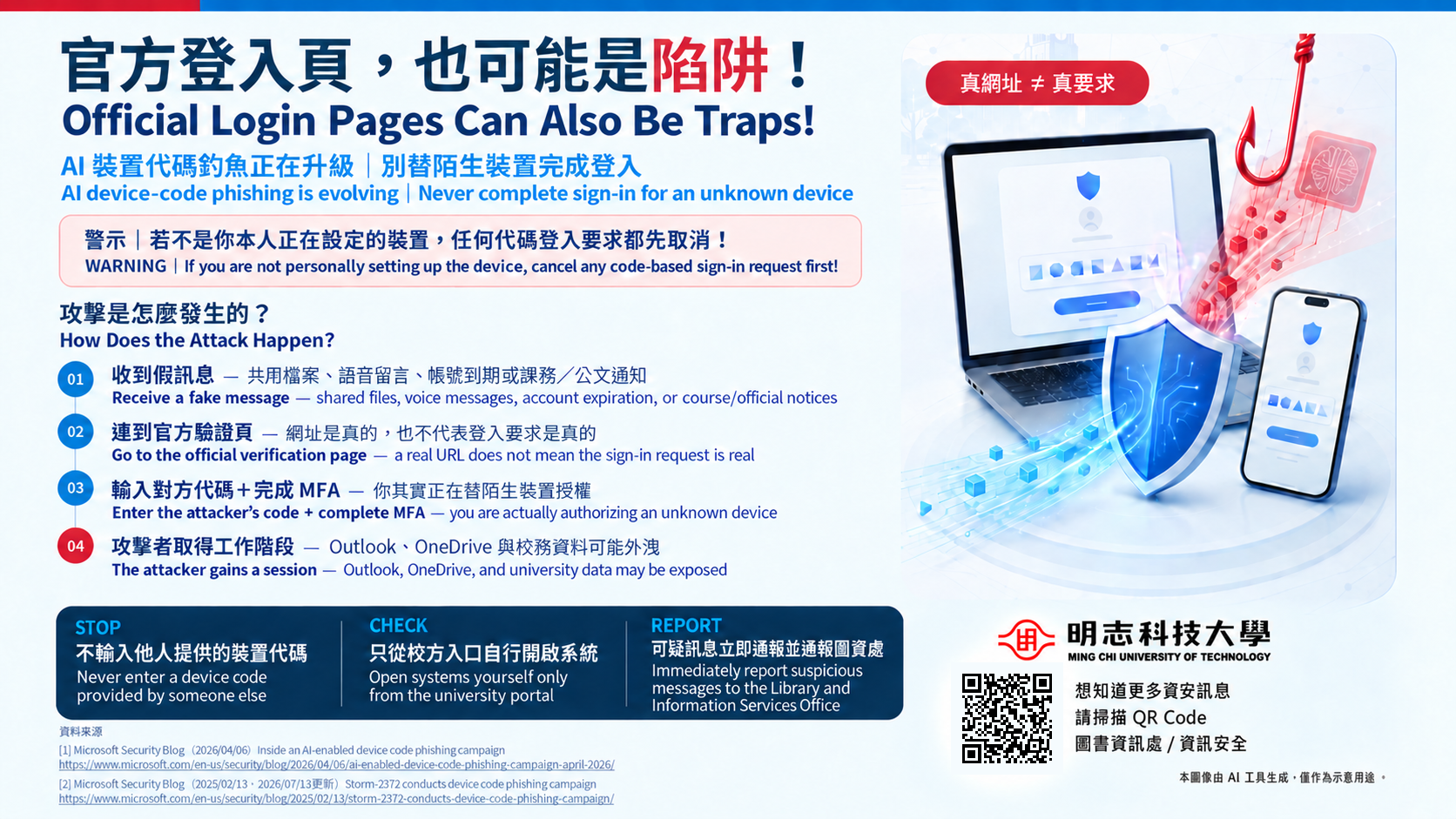
AI Device-Code Phishing Is Evolving|Do Not Complete Sign-In for an Unfamiliar Device
Recently, attackers have continued to use AI device-code phishing techniques. They may send fake messages disguised as shared files, voice messages, account-expiration notifications, course-related notices, or official document notifications to trick users into signing in.
Please pay special attention:
A Real URL ≠ A Real Request
Even if you are directed to a legitimate official verification page, it does not mean that the login request is safe.
Warning
If you are not personally setting up the device, cancel any device-code sign-in request first!
How Does the Attack Happen?
01|Receive a Fake Message
Attackers may use shared files, voice messages, account-expiration notifications, course-related notices, or official document notifications to guide you through the sign-in process.
02|Go to the Official Verification Page
You may be directed to a legitimate official verification website. However, please remember: a real URL does not mean that the sign-in request is real.
03|Enter the Other Party’s Code and Complete MFA
When you enter the device code provided by the attacker and complete multifactor authentication (MFA), you may actually be authorizing an unfamiliar device.
04|The Attacker Obtains a Session
After obtaining a login session, the attacker may gain unauthorized access to or expose Outlook, OneDrive, and university data.
How Can You Protect Yourself?
1. Do Not Enter Device Codes Provided by Others
Do not enter a device code at the direction of an unfamiliar message or another person, and do not complete MFA verification for an unknown device.
2. Open Systems Only from the Portal
Open Outlook, OneDrive, or other systems by accessing them directly through the portal. Avoid following instructions in suspicious messages.
3. Stop Immediately If You Notice Anything Unusual
If you did not set up a new device but received a device-code sign-in request, cancel it immediately and do not continue.
4. Screenshot and Immediately Report Suspicious Messages
Keep the suspicious message or take a screenshot, stop operating and report it immediately.
STOP|Stop
Do not enter device codes provided by others.
CHECK|Verify
Open systems only from the portal.
REPORT|Report
Screenshot suspicious messages and report them immediately.
To learn more about cybersecurity information, please scan the QR Code.